


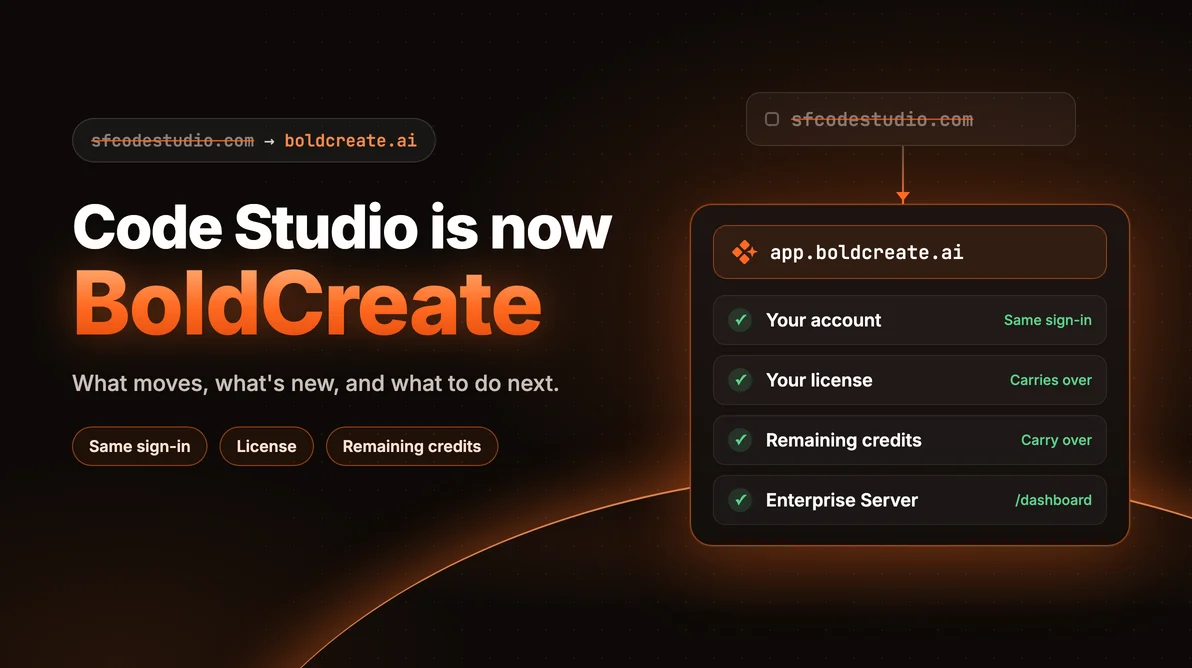
TL;DR: Syncfusion Code Studio is now BoldCreate, and its home moves from sfcodestudio.com to boldcreate.ai. Existing sfcodestudio.com links redirect automatically. Sign in at app.boldcreate.ai with the account you already use. Your subscription and purchased credits come with you, and your organization’s users, teams, budgets, and LLM keys stay as they are. The Code Studio IDE is retired: use the BoldCreate Desktop App for local work, the CLI for your terminal and CI pipelines, and Cloud Agent for tasks that run in the cloud.
Code Studio Is Now BoldCreate
Starting November 5, 2026, Code Studio continues as BoldCreate. The product name, the web address, and the way you work all change. Your account, your subscription, and your credits don’t.
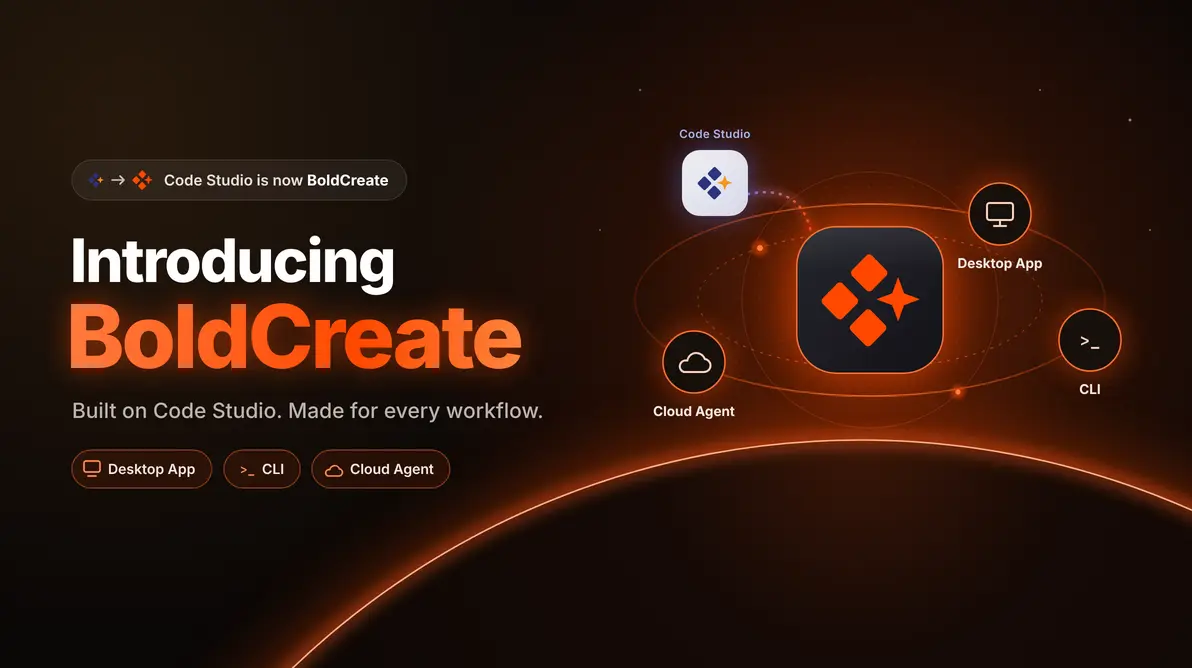
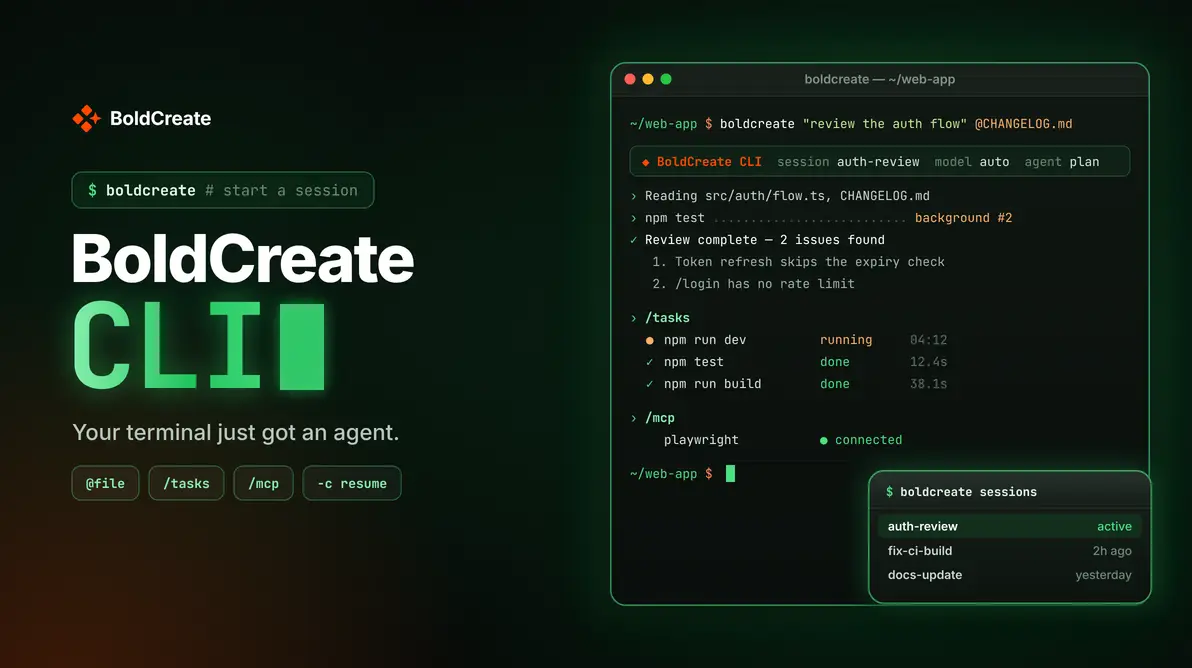
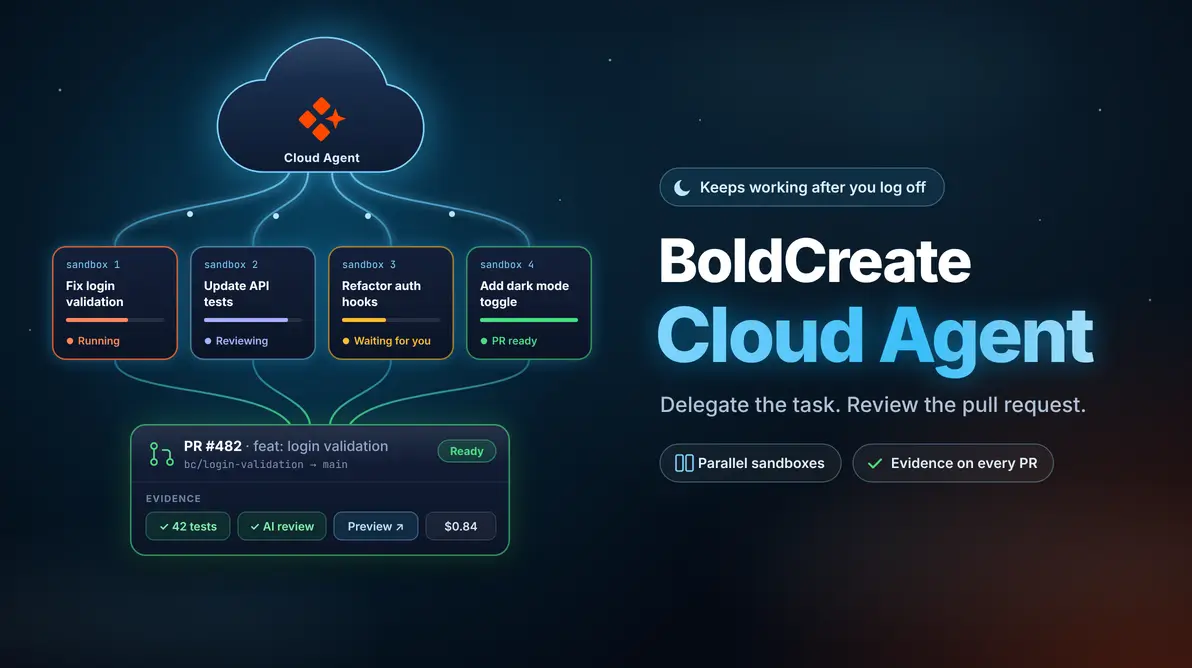
Code Studio was an IDE. BoldCreate is an AI development team that works wherever you do: in the cloud, on a schedule, on your own computer, and in your terminal. Every surface ends the same way, with a change that has tests and review findings for your team to review and merge. The November 2026 launch post walks through each product.
This post explains what moves, where each tool lives now, and the steps to get your team running on BoldCreate.
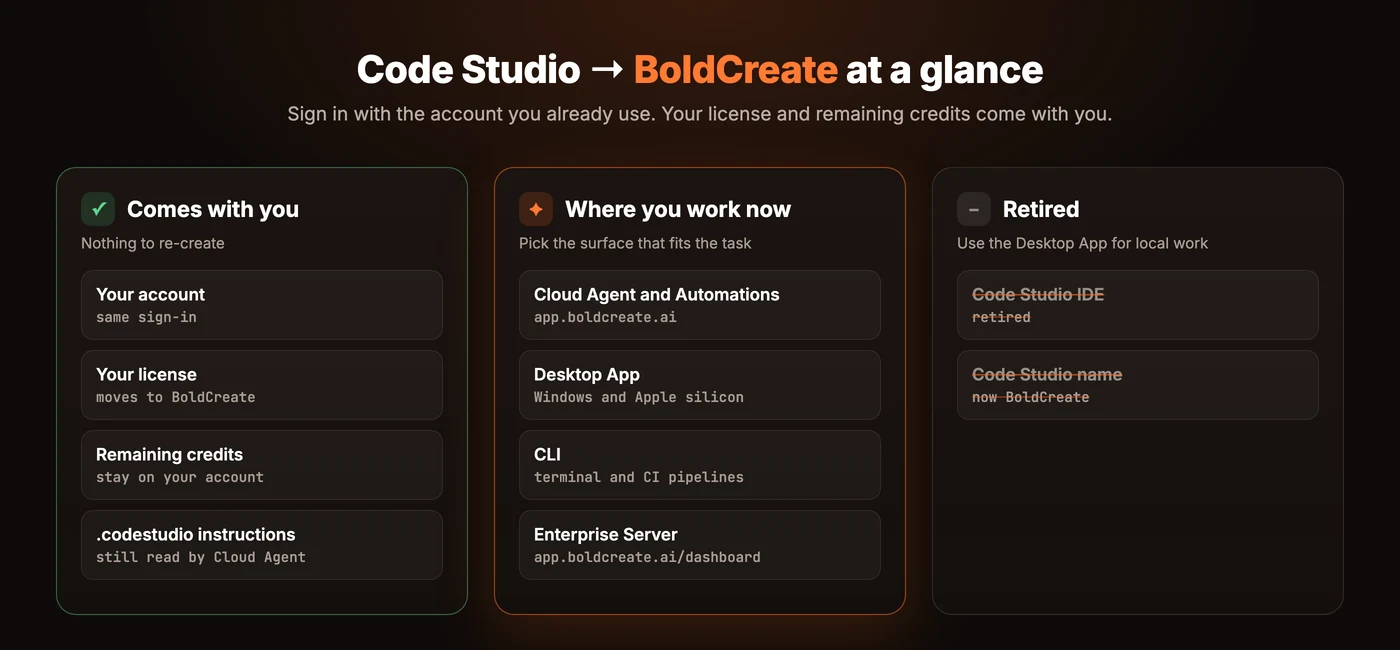
What Comes With You
You don’t need a new account or a new purchase to start using BoldCreate.
- Your account: Sign in to BoldCreate with the same account you used for Code Studio.
- Your subscription and credits: Your Code Studio subscription and purchased credits carry over, so you don’t need to buy new credits.
- Your organization’s setup: Users, teams, budgets, and LLM keys stay as they are.
- The way you work with agents: Agent, Ask, and Plan, MCP servers, skills, custom agents, and project instructions all continue in BoldCreate.
The one thing that doesn’t come with you is the Code Studio IDE. It’s discontinued and will no longer receive updates. The BoldCreate Desktop App takes its place for work on your own computer. The November 5, 2026 release notes list everything in this release.
Where Everything Lives Now
Links to sfcodestudio.com redirect to boldcreate.ai automatically, so shared links and old bookmarks keep working. Use this table to find each tool’s new home, and update internal wiki pages and onboarding documents when you can.
| What you need | Where it is now | Learn more |
|---|---|---|
| Product website | boldcreate.ai | Plans and pricing |
| Cloud Agent and Automations | app.boldcreate.ai | Cloud Agent and Automations |
| Desktop App | Desktop App release history | Install the Desktop App |
| CLI | BoldCreate CLI | Install the CLI |
| Enterprise Server for admins | app.boldcreate.ai/dashboard | Get started with Enterprise |
| Documentation | docs.boldcreate.ai | Release notes |
| Support | support.boldcreate.ai | Contact us |
| Feature requests and feedback | feedback.boldcreate.ai | What’s New |
Move to BoldCreate in Five Steps
- Sign in at app.boldcreate.ai. Use the account you used for Code Studio. See Sign-in and account access.
- Check your credits. Open the Dashboard from your profile menu, then select Settings > Credits. The usage and credits guide shows each step.
- Connect your repositories. Cloud Agent works with GitHub, GitLab, and Gitea. See the integrations overview, then start your first task.
- Install the Desktop App for local work. Download version 1.0.0 for Windows x64, Windows Arm64, or Apple silicon from the Desktop App release history.
- Add the CLI where you need it. Use the BoldCreate CLI in your terminal and in CI pipelines. Follow the CLI installation guide to set it up on macOS or Windows.
Once you’re signed in, starting a task takes a few seconds. Pick the repository and the agent, then describe the change in plain language. The Cloud Agent guide covers the full workflow, from the first prompt to the pull request.
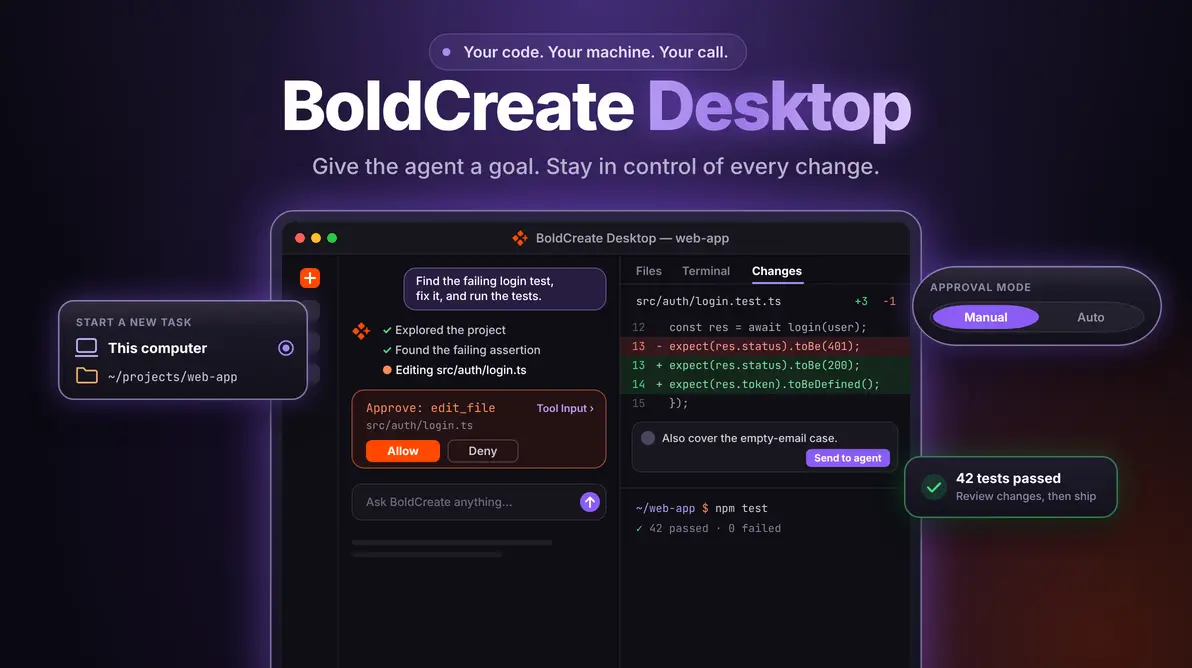
If you worked in the Code Studio IDE, the Desktop App is where you’ll spend most of your local time. Choose This computer, select a project folder, pick an approval mode, and describe the task. In Manual mode, the agent pauses for your approval before actions that need it, such as editing a file. Meet BoldCreate Desktop explains approval modes and reviewing changes in detail.
What the Move Means for Admins
Enterprise Server moves to BoldCreate with a new layout and theme. Admins sign in at app.boldcreate.ai/dashboard, where the menu groups pages by job: Analytics, People, Cost Control, Models and Routing, and Settings. Your organization’s users, teams, budgets, and LLM keys are already there.
- Overview shows active users, total spend, adoption rate, agent sessions, requests, errors, and latency for the period you pick.
- Users and Teams let you invite people by email with a team and a role, and see how many seats are in use.
- Budget and Approval let you set budgets for a team or a user and review requests for more.
- LLM Keys holds provider keys for the whole organization or for specific teams, along with a fallback policy.
The seat breakdown on the Overview is a quick way to track the move. It shows who uses BoldCreate, who stopped, and who never tried it, so you can follow up with the teams that haven’t switched yet.
Moving a whole team? Contact us about moving your team, and we’ll help you plan the switch.
Keep Your Project Instructions
Your repositories don’t need to change before you start. Cloud Agent reads project instructions from the files your team already maintains, including the Code Studio locations:
.codestudio/codestudio-instructions.md.codestudio/instructions/*.mdAGENTS.md,CLAUDE.md, and.github/copilot-instructions.md
Skills stored under .codestudio/skills/ keep working too. Cloud Agent and the CLI both look there, so the coding standards and checklists you wrote for Code Studio keep guiding the agent in BoldCreate. For details, see Cloud Agent skills and CLI project context and instruction files.
Start Your First Task in BoldCreate
The fastest way to get comfortable with BoldCreate is to give it one real task from your backlog: a failing test, a small endpoint, or a documentation update. Review the change it produces, then decide where it fits in your workflow.
Sign in to BoldCreate with your existing account, download the Desktop App to start on your own computer, or request a demo to plan the move with our team.
Frequently Asked Questions
Code Studio is now BoldCreate. The Code Studio IDE is retired, and the BoldCreate Desktop App, CLI, and Cloud Agent cover local, terminal, and cloud work.
Yes. Links to sfcodestudio.com redirect to boldcreate.ai automatically.
No. Sign in at app.boldcreate.ai with the account you used for Code Studio.
Your Code Studio subscription and purchased credits carry over to BoldCreate, so you don’t need to buy new credits. Check your balance under Settings > Credits in the Dashboard.
In Enterprise Server at app.boldcreate.ai/dashboard. It covers analytics, users and teams, budgets and approvals, LLM keys, and settings.
No. Cloud Agent reads .codestudio/codestudio-instructions.md and .codestudio/instructions/*.md along with other supported instruction files.
Leave a comment
Join the discussion by signing in with your account.
Sign in to comment