


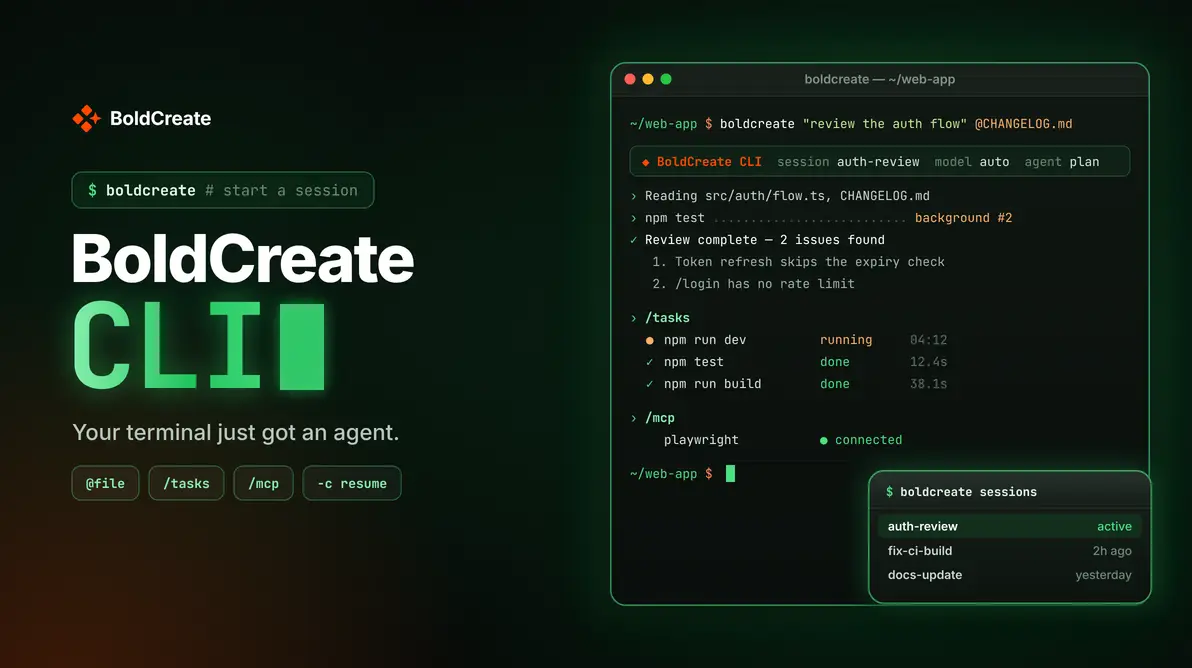
TL;DR: Your terminal is already where you build, test, debug, and manage software. BoldCreate CLI brings agentic development into that workflow, allowing you to describe tasks in natural language, provide project files and screenshots, resume previous conversations, and run development commands with an AI agent. With configurable models, reasoning levels, approval modes, and MCP integrations, BoldCreate CLI helps you work with AI across terminal-based development and CI workflows.
Bring AI Into Your Terminal Workflow
For developers, the terminal is more than a place to run commands. It is where builds run, tests fail, logs reveal problems, and development workflows come together.
Switching to another tool to explain a build failure or provide project context can interrupt that flow.
BoldCreate CLI brings agentic development directly into your terminal. Describe a task, give the agent relevant context, and let it help investigate issues, modify code, and run commands within your development workflow.
Whether you’re working locally or using terminal-based automation, the CLI gives you another way to work with the BoldCreate agentic development platform.
Start a BoldCreate Session
Open your terminal in the project folder and run:
boldcreateYou can also provide an initial request:
boldcreate "Review the authentication flow"BoldCreate starts a session in your current workspace. You can describe a task immediately or continue the conversation interactively as the agent works.
Give the Agent More Context
The right context helps an agent understand what you want to accomplish.
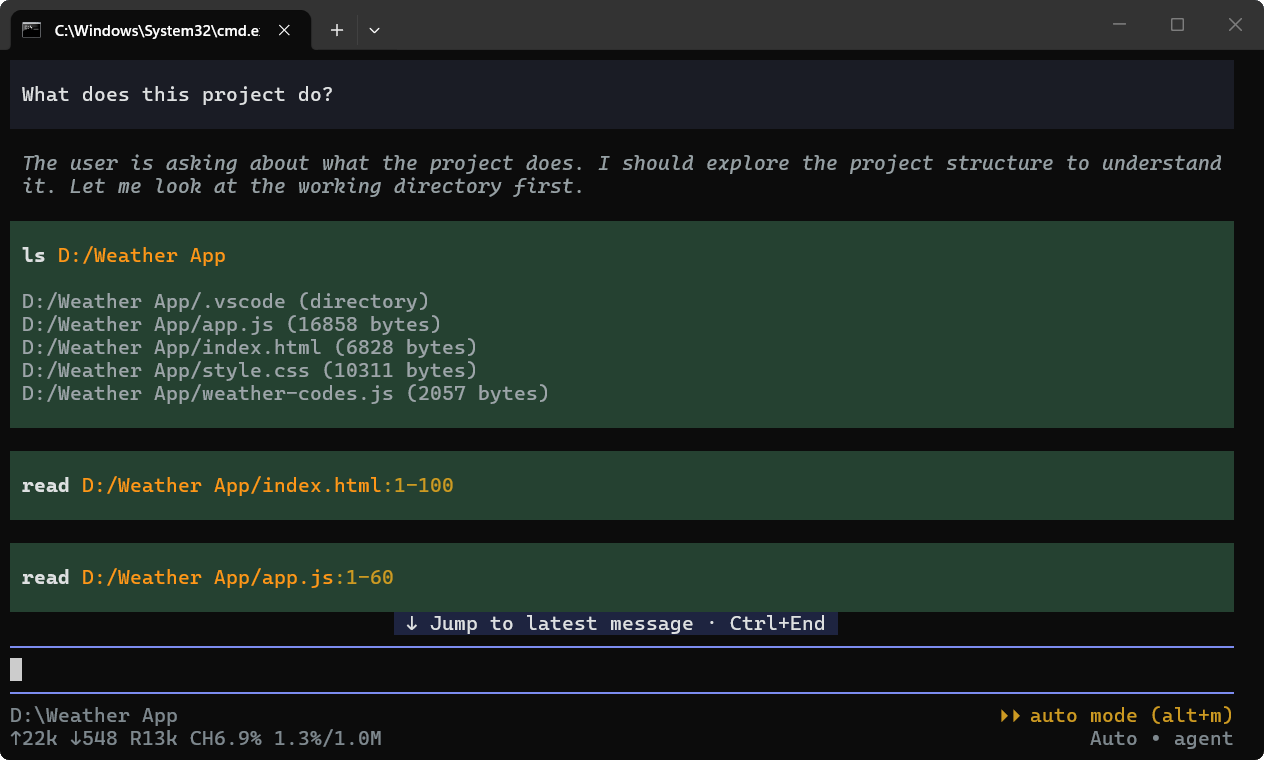
BoldCreate CLI lets you include text files directly in your initial request using @path arguments. For example:
boldcreate "Review this changelog" @CHANGELOG.mdYou can also provide supported image files, including screenshots, diagrams, and mockups, by specifying their paths. This helps you share error messages or visual references alongside your instructions.
Resume Previous Conversations
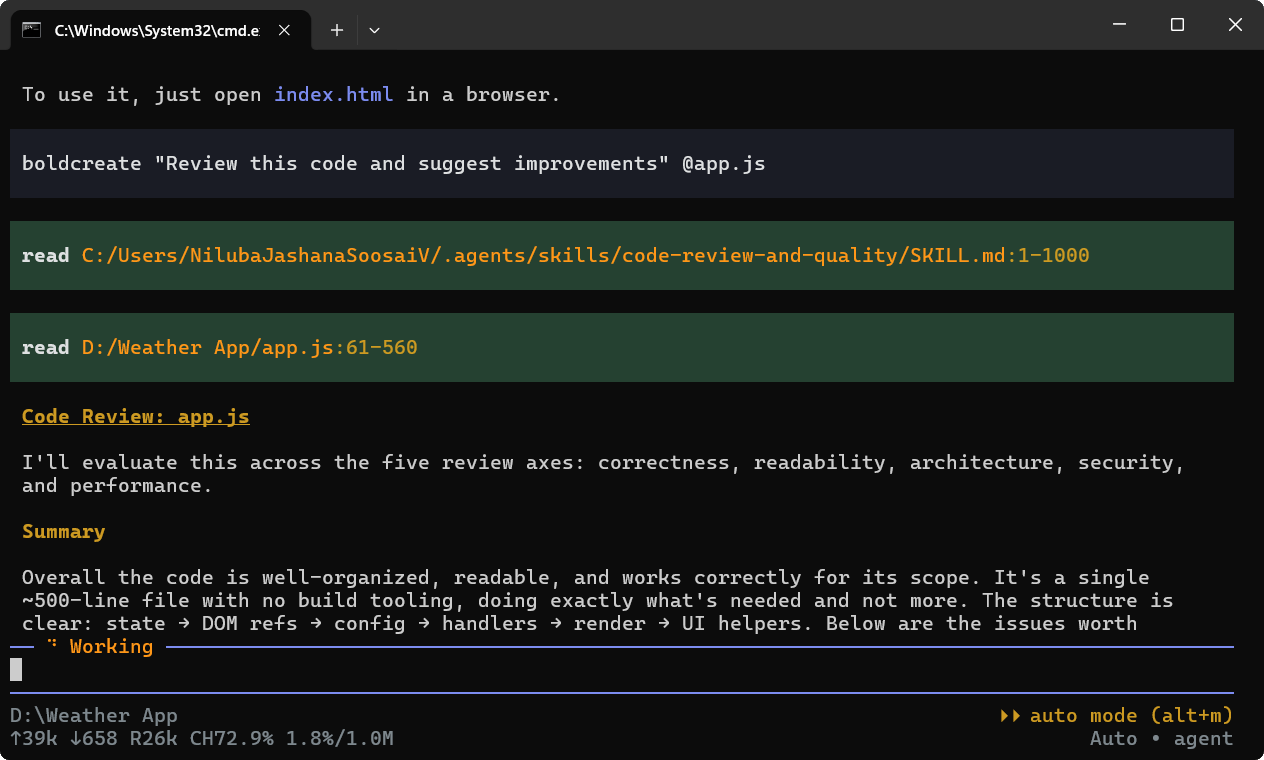
You don’t have to start from scratch every time. BoldCreate saves sessions locally so you can return to previous conversations and continue your work.
List saved sessions:
boldcreate sessionsContinue the most recent session in the current folder:
boldcreate -cOpen the session picker:
boldcreate -rYou can also resume a specific session using boldcreate --session ID or name a session to make it easier to find later.
Sessions are associated with the folder where they were started. If you cannot find a session, return to the original project folder or use boldcreate sessions --all to list sessions across folders.
Connect External Tools Through MCP
Development tasks can require information and capabilities beyond your local codebase.
BoldCreate CLI supports the Model Context Protocol (MCP), which lets you connect external tools and services to the agent.
For example, you can add a Playwright MCP server with:
boldcreate mcp add playwright -- npx -y @playwright/mcp@latest --headlessList configured servers and check their connection status:
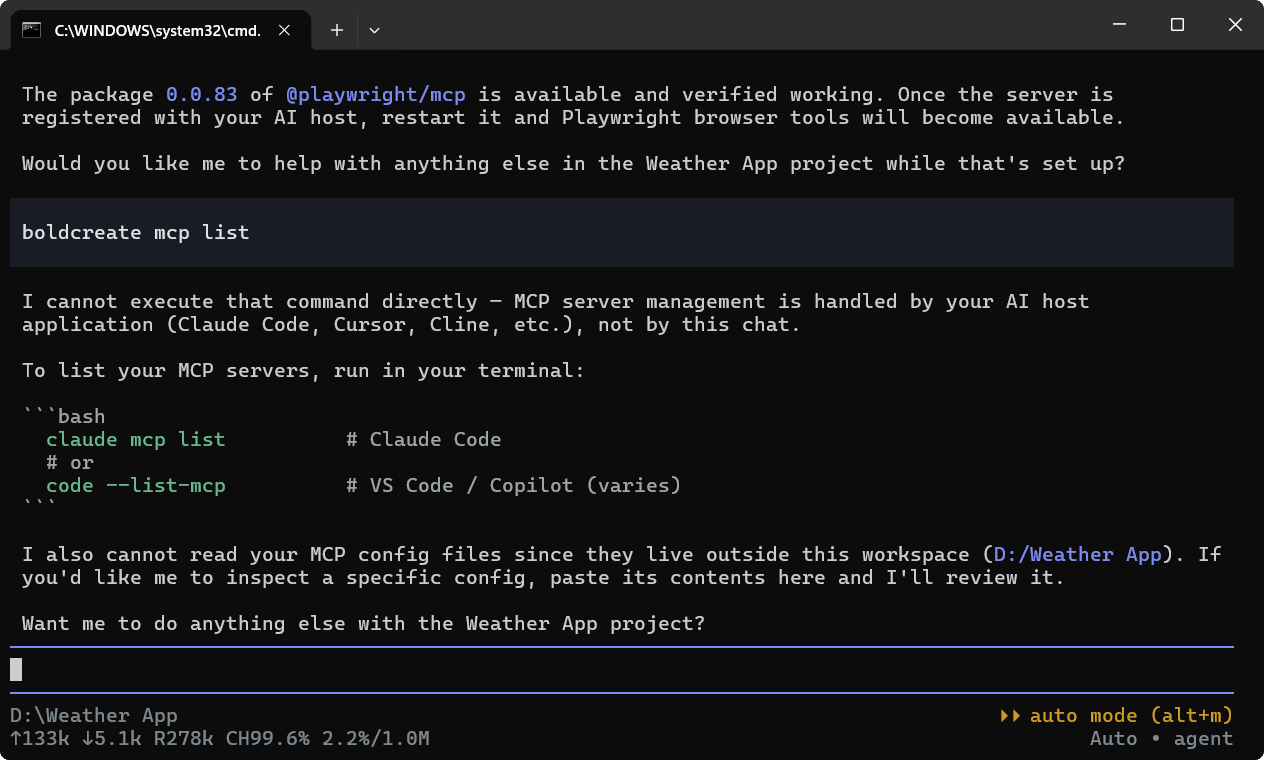
boldcreate mcp listInside an interactive session, use /mcp to manage servers, inspect their tools, and handle connection or sign-in requirements.
MCP integrations extend the tools available to the agent, depending on the servers you configure and enable.
Manage Long-Running Tasks
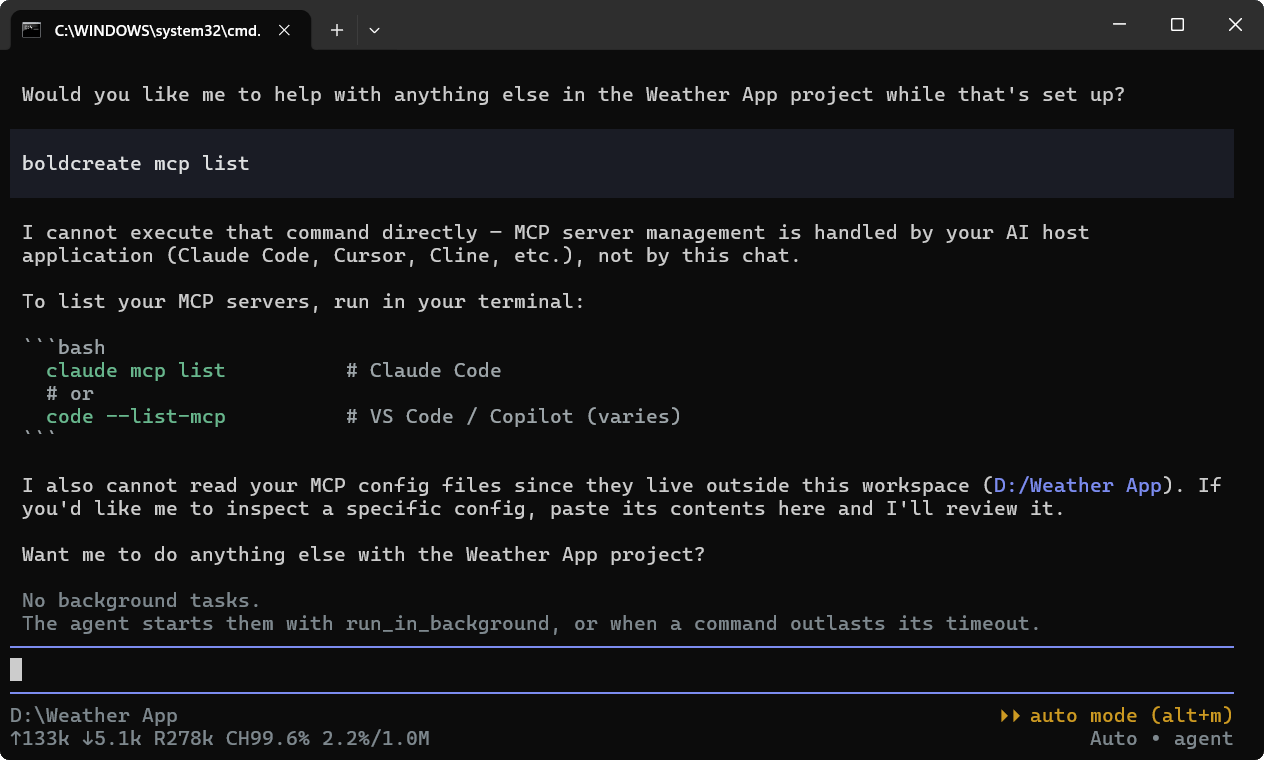
Builds, test suites, development servers, and other commands can take time to finish. BoldCreate CLI can run long-running commands in the background, allowing their progress and output to be checked without unnecessarily restarting the work.
Use:
/tasksto view and manage background tasks in an interactive session. You can inspect task status and output, and stop running tasks when needed.
Background tasks continue while BoldCreate is running, but they stop when you exit the CLI. Keep this in mind when running development servers or other commands that need to remain active.
Configure How the Agent Works
Different tasks call for different levels of planning, reasoning, and oversight. BoldCreate CLI lets you configure the model, reasoning effort, agent mode, and approval behavior.
For example, switch to planning mode with:
/agent planSet the approval mode to Manual with:
/mode manualYou can also use /agent agent for implementation work or /agent ask to ask questions without making changes. Supported reasoning levels include none, minimal, low, medium, high, and xhigh, depending on the selected model.
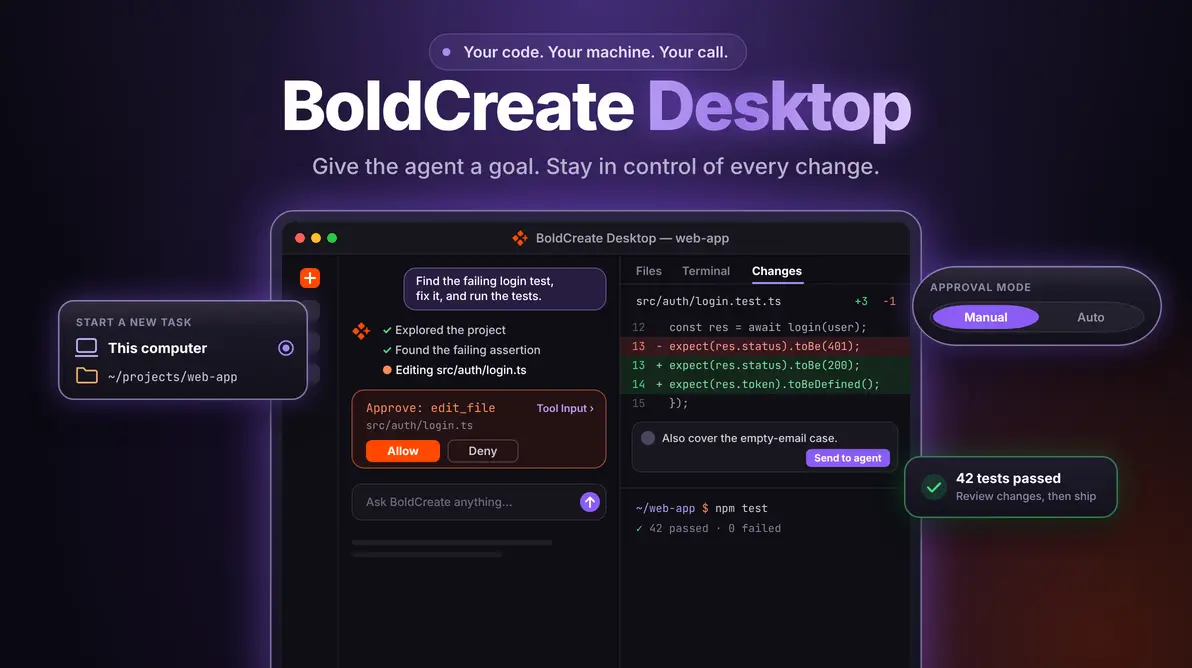
Choose settings that suit the task and your preferred level of control. In Manual approval mode, the agent requests authorization for actions that require approval before proceeding.
Bring Agentic Development to Your Terminal
Your terminal already provides access to your project files, development commands, and working context. BoldCreate CLI brings an AI agent into that environment, helping you investigate problems, work through development tasks, connect external tools, and return to previous conversations.
Start a session. Provide context. Delegate a task. Review the result.
Ready to get started?
Explore BoldCreate CLI and bring agentic development to your terminal and CI workflows.
Frequently Asked Questions
BoldCreate CLI brings the BoldCreate agentic development experience to your terminal. Start sessions, describe tasks, and work with an AI agent from the command line.
Yes. Use @path arguments to include supported text files in an initial request, or provide supported image paths for screenshots, diagrams, and mockups.
Yes. Use boldcreate -c to continue the latest session in the current folder, boldcreate -r to select a session, or boldcreate –session ID to resume a specific one.
Yes. BoldCreate CLI supports MCP servers. Use boldcreate mcp add to configure a server and boldcreate mcp list to check its status.
Yes. Configure the agent mode, model, reasoning effort, and approval behavior to suit your workflow. Manual approval mode provides an opportunity to review actions that require authorization.
Leave a comment
Join the discussion by signing in with your account.
Sign in to comment