


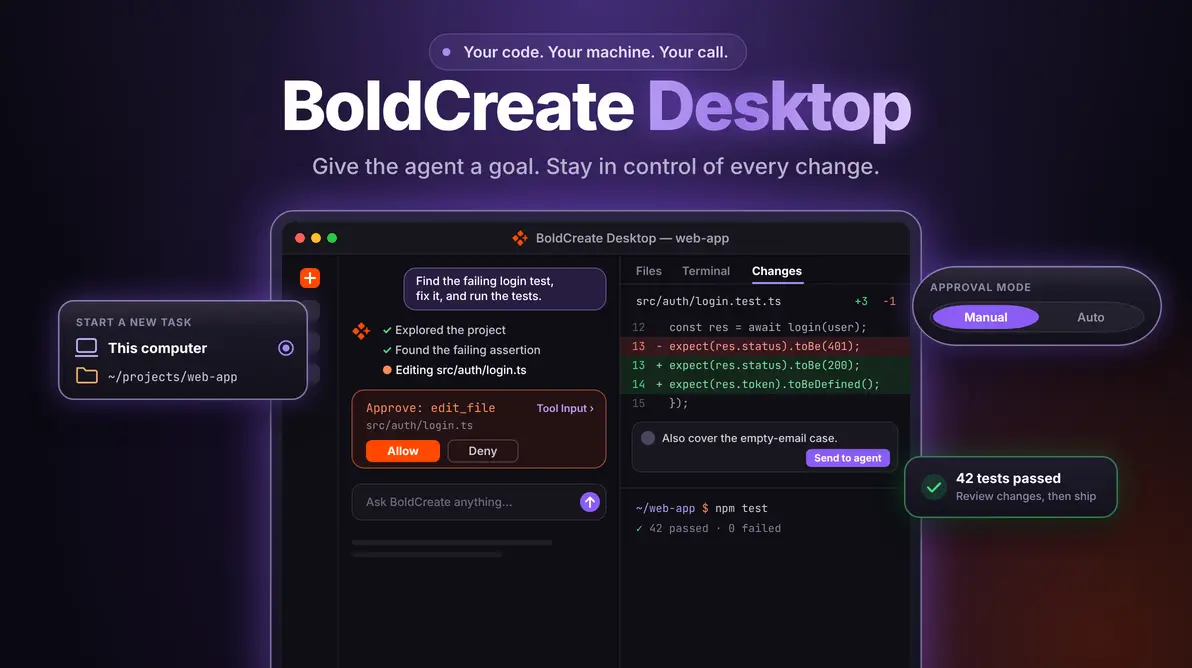
TL;DR: AI-assisted development becomes more useful when an agent can work with the project context already available on your computer. BoldCreate Desktop brings agentic development into a dedicated desktop experience, allowing you to work with local project files, run commands, review changes, and refine implementations in one place. With configurable approval modes and built-in tools for inspecting your work, you can move from a development request to implementation and verification while maintaining visibility and control.
Bring AI Into Your Local Development Workflow
Software development often depends on context that exists on your computer: project files, uncommitted changes, local applications, and the tools you use every day.
Moving that context into a separate AI tool can interrupt your workflow and make it harder to understand how proposed changes fit into your project.
BoldCreate Desktop brings agentic development directly to your computer. Describe a task in natural language, let the agent work through the implementation, and review the results in the same workspace.
Whether you’re investigating a failing test, refactoring a component, or updating documentation, you can work with the agent while keeping control over the changes it makes.
What Is BoldCreate Desktop?
BoldCreate is an agentic development platform that helps developers work through software tasks using AI agents.
Instead of generating isolated code snippets, the agent can explore a project, inspect files, make changes, run commands, and verify its work as part of a development task.
The BoldCreate Desktop App provides a dedicated interface for working with projects on your computer. You can start tasks in a selected project folder, provide instructions, monitor the agent’s progress, and review code changes before proceeding.
Get Started With Your Local Project
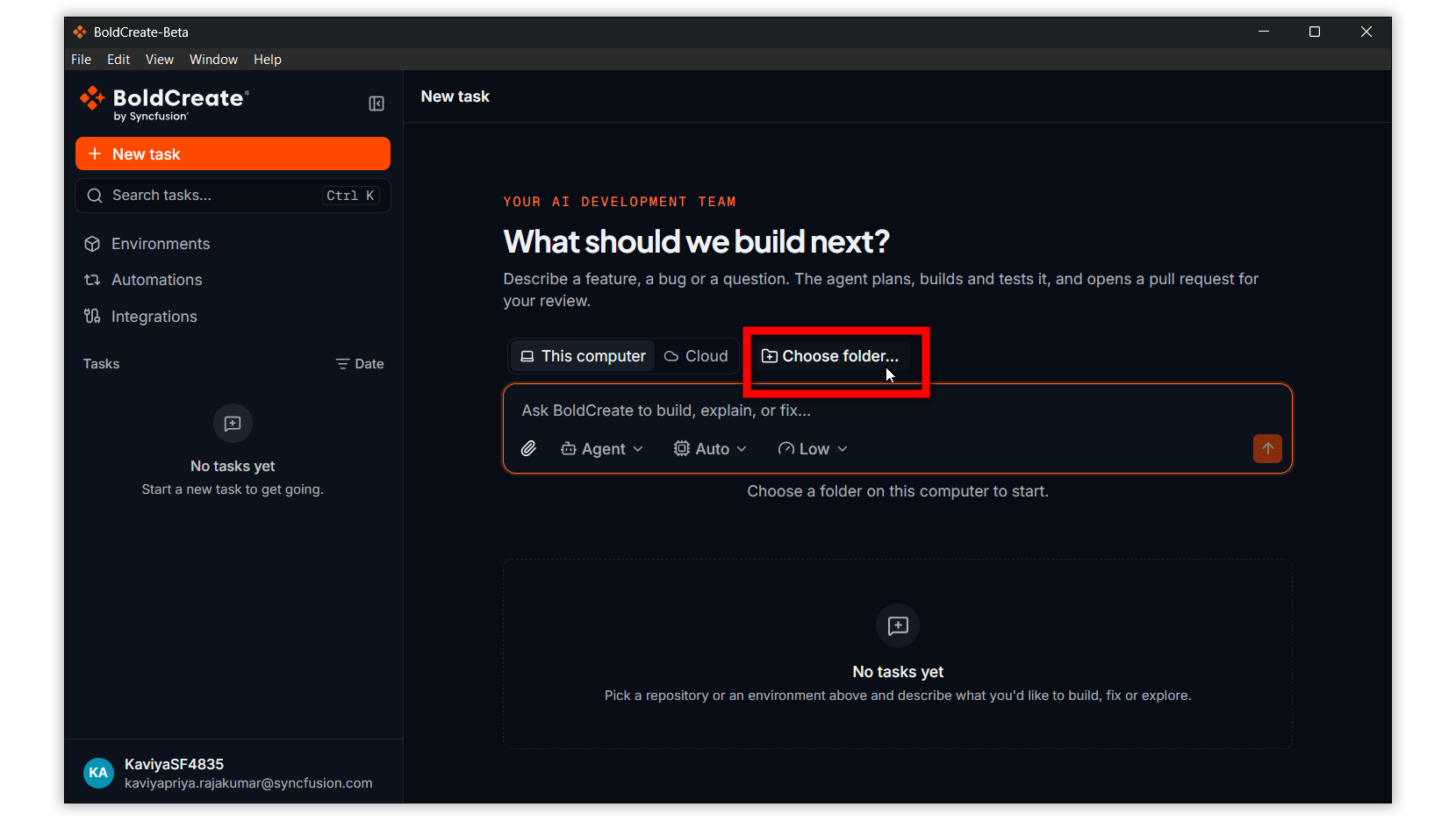
Getting started begins with selecting the project you want the agent to work on.
- Click New Chat in the sidebar.
- Under Start a new task, select This computer.
- Click Choose folder… and select your project folder.
- Choose an approval mode. Manual is selected by default.
- Enter your development request and press Enter.
BoldCreate also remembers previously used folders, so you can select a project from Recent folders when starting another task.
Describe the Goal, Not Every Step
You don’t need to plan every file change before starting a task. Give the agent a clear goal and enough context to understand the expected result.
For example, instead of asking which file to inspect and which command to run at each step, try:
Find the failing login test, identify the underlying issue, fix it, and run the relevant tests.
The agent can investigate the project, determine which files need attention, implement the fix, and execute relevant commands. You can then review the results and request additional changes if needed.
This is the core of agentic development: you define the objective, and the agent works through the task using the available tools and project context.
Stay in Control With Approval Modes
Working with an AI agent on your computer requires visibility into the actions it takes. BoldCreate provides approval modes that let you control how tool actions are authorized.
Manual Mode
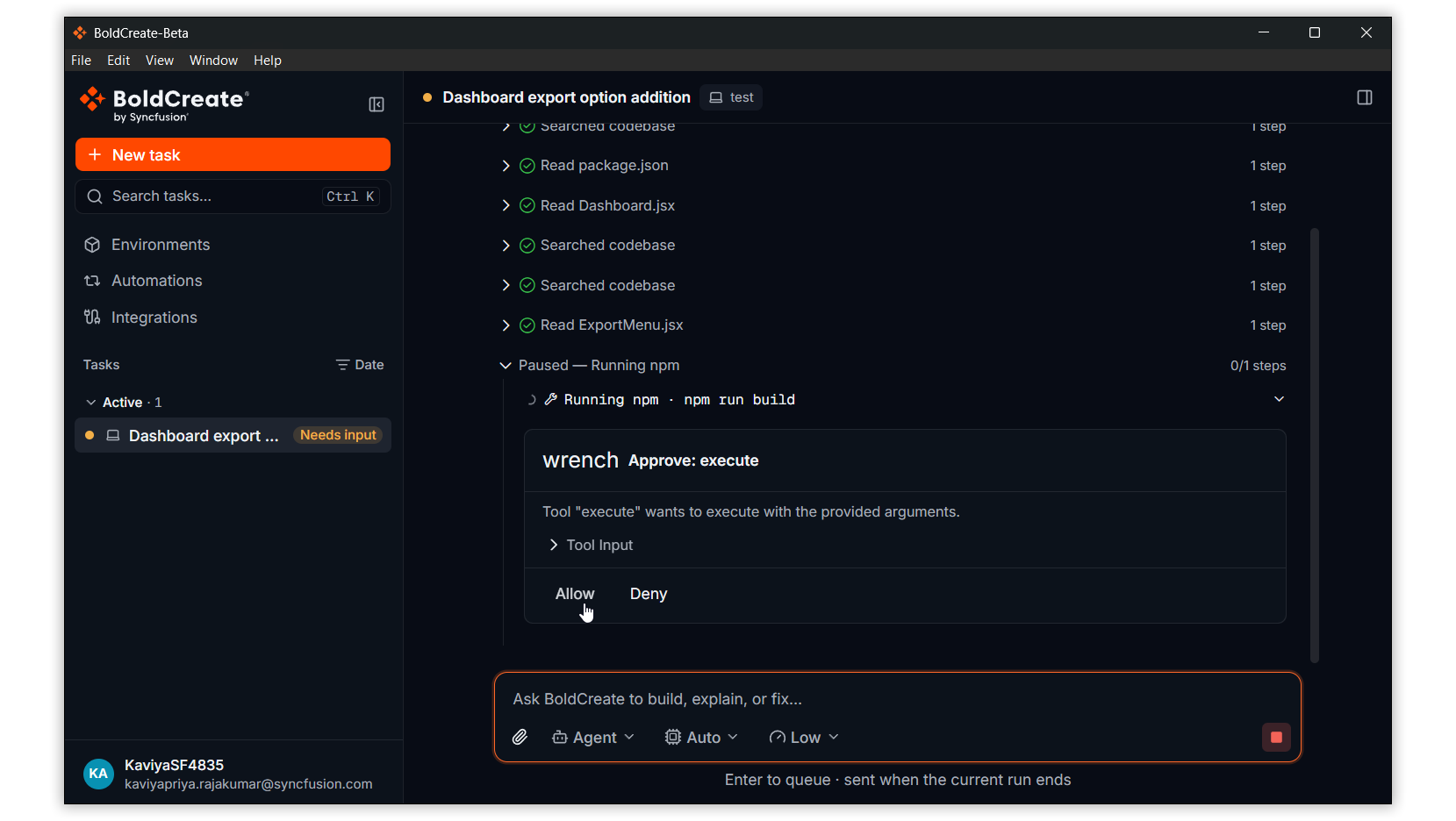
Manual mode is selected by default. When an action requires approval, the agent pauses so you can inspect the request before deciding whether to proceed.
Open Tool Input to review the action, then choose:
- Allow to approve the requested action.
- Deny to reject it.
This mode is useful when you’re learning the workflow or want to review actions before they run.
Auto Mode
Auto mode allows the agent to perform actions without requesting approval for each one.
You can switch back to Manual mode whenever you need more oversight. Your approval setting is saved for each folder.
Choose the mode that suits your workflow and the level of control you want while the agent works.
Follow the Work as It Happens
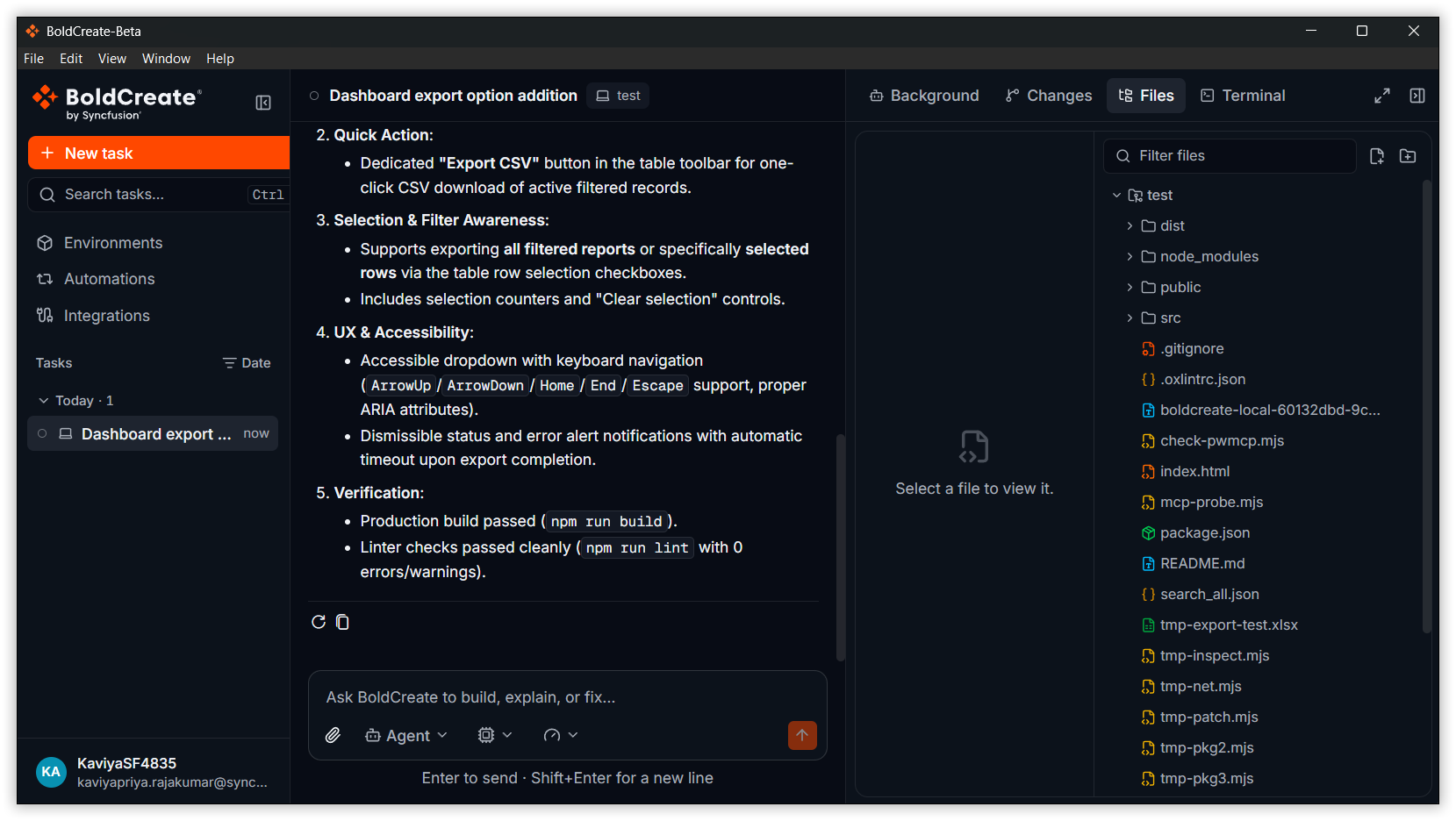
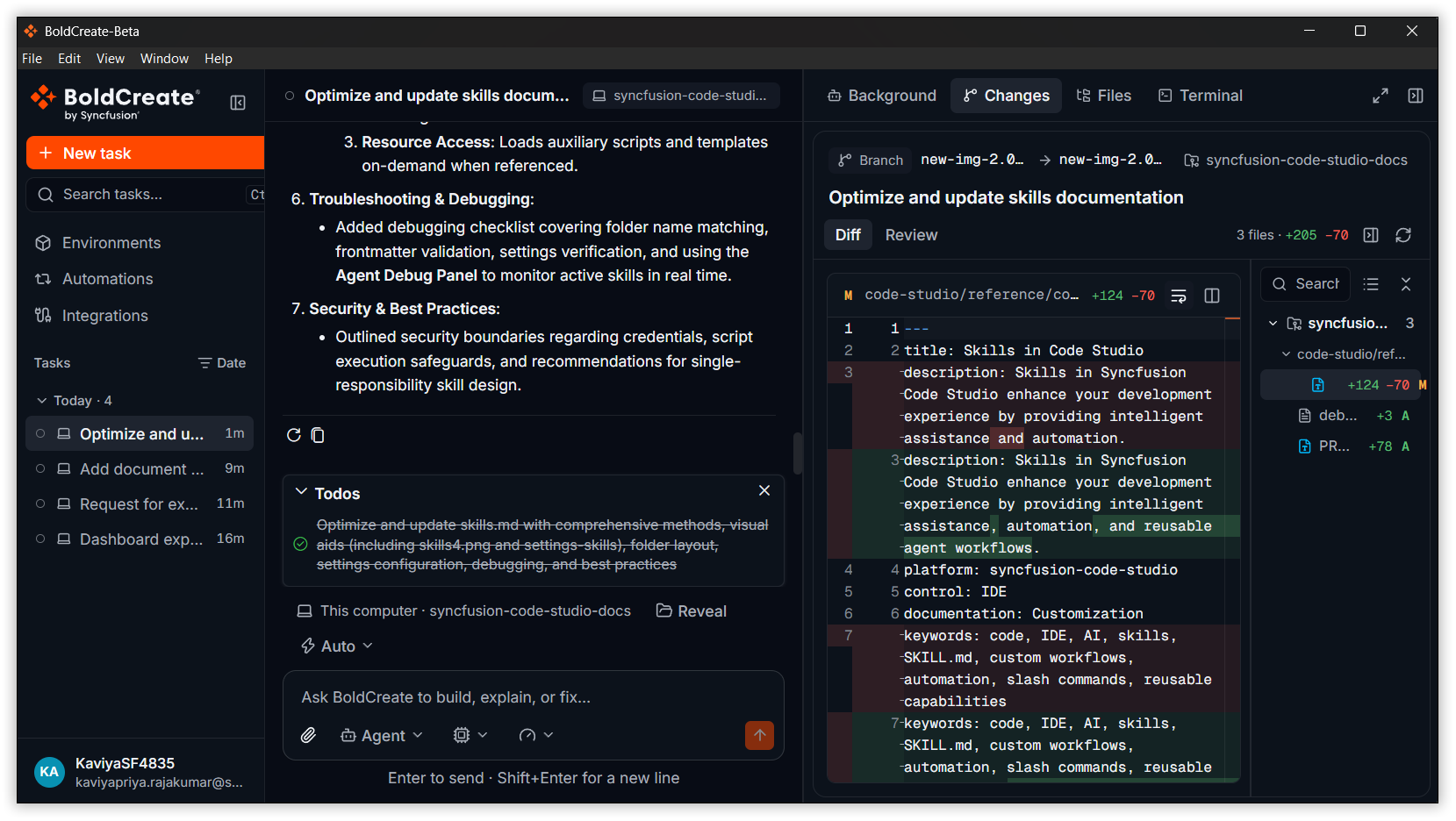
BoldCreate Desktop brings essential development tools into one workspace, helping you understand the agent’s progress without losing sight of your project.
- Files: Browse your project files and folders, open files, and make your own edits when needed.
- Terminal: Run commands in the project folder, inspect output, and investigate issues.
- Changes: Review modified files and compare the agent’s changes with the previous versions.
These tools make it easier to follow the implementation, investigate unexpected results, and decide what needs attention next.
Review Changes Before Moving Forward
An agent’s implementation is only one part of the development process. Reviewing the changes helps you understand what was modified and whether the result meets your requirements.
Open the Changes tab to inspect files that were added, modified, deleted, renamed, or copied.
You can also:
- Compare code using inline or side-by-side diff views.
- Add comments to specific lines.
- Send review comments back to the agent when further changes are needed.
After reviewing the implementation, you can ask the agent to address feedback, make additional improvements, or run relevant tests again.
What Can You Build With BoldCreate Desktop?
Start with a focused development task and expand as you become familiar with the workflow.
- Fix failing tests: Investigate a test failure, implement a fix, and run the relevant tests.
- Debug application errors: Trace an error through the project files and investigate its cause.
- Refactor components: Improve a function or component while preserving the intended behavior.
- Update documentation: Revise project documentation to reflect code changes or new functionality.
- Implement small features: Describe a specific requirement and review the resulting implementation.
For tasks that depend on local databases, localhost applications, uncommitted changes, or VPN-accessible services, the Desktop App can provide access to the local context those workflows require.
Bring Agentic Development to Your Desktop
AI-assisted development works best when it fits the way you already build software.
With BoldCreate Desktop, you can work with local project context, delegate implementation tasks to an AI agent, inspect its progress, and review changes before moving forward.
Choose your project. Describe your goal. Review the implementation. Stay in control.
Ready to get started? Explore BoldCreate Desktop and bring agentic development into your local workflow.
Frequently Asked Questions
BoldCreate Desktop is the desktop experience for the BoldCreate agentic development platform. It lets you work with project folders on your computer using AI agents.
Click New Chat, select This computer, choose your project folder, select an approval mode, and enter your request.
In Manual mode, the agent pauses for approval when an action requires it. Auto mode allows actions to proceed without individual approval prompts.
Yes. The Changes tab lets you inspect modified files, compare code differences, add review comments, and request further changes.
Yes. The Desktop App is designed for workflows that require local context, including localhost applications, local databases, uncommitted changes, and VPN-accessible services.
Leave a comment
Join the discussion by signing in with your account.
Sign in to comment