


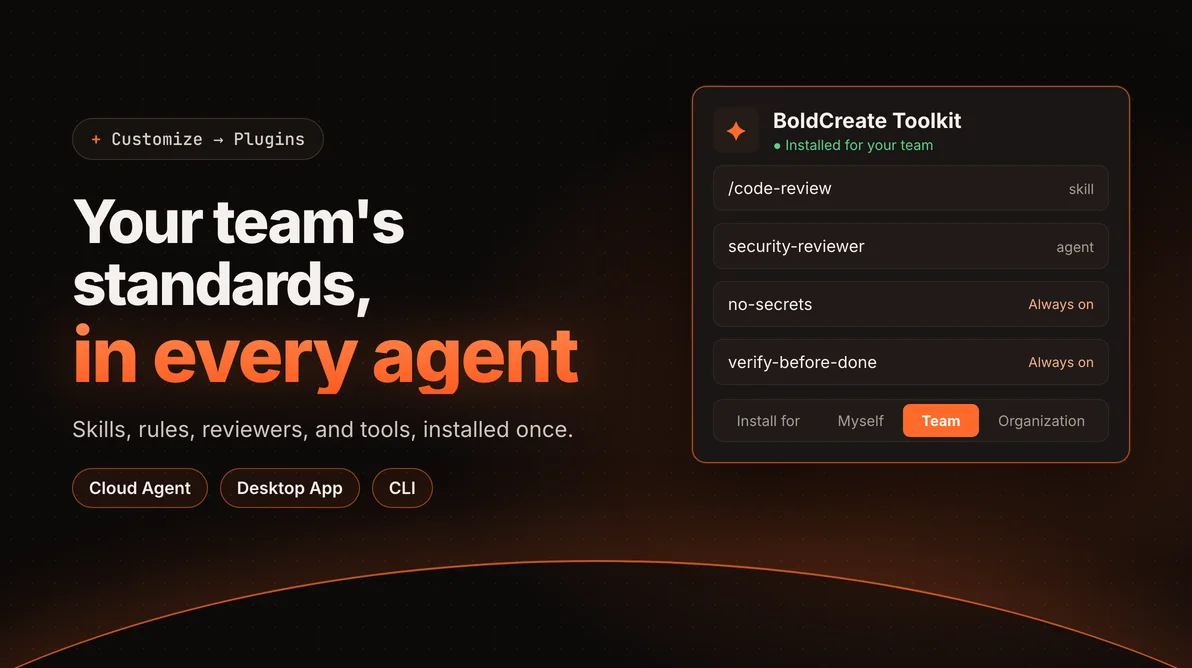
TL;DR: Plugins give every BoldCreate agent the same skills, rules, reviewer agents, and tool connections. Open Customize, install a plugin for yourself to try it, then install it for your team or the whole organization. New tasks in Cloud Agent, the Desktop App, and the CLI pick it up, so a review, a rule like “keep secrets out of code,” or a Linear connection works the same way for everyone.
When Every Developer Gets a Different Agent
AI coding agents follow the instructions they’re given. When each developer gives different instructions, each developer gets a different agent. That’s fine for one person, and it becomes a problem as soon as a team shares a repository.
Take Alex Morgan, who leads the team that builds Acme’s admin portal (a demo team we’ll use throughout this post). On a Monday morning, Alex opens three pull requests that agents prepared over the weekend:
- One adds a test fixture with a hard-coded API key, because nothing told the agent to keep credentials out of code.
- One says “done,” but no one ran the build. CI fails an hour later.
- One was reviewed with a prompt the developer wrote from memory, so it checked style but not the spec.
The developers also paste Linear issue details into every task by hand, because the agent can’t read the tracker. None of these are agent failures. The team’s standards live in people’s heads and in a wiki page, and the agent never sees them.
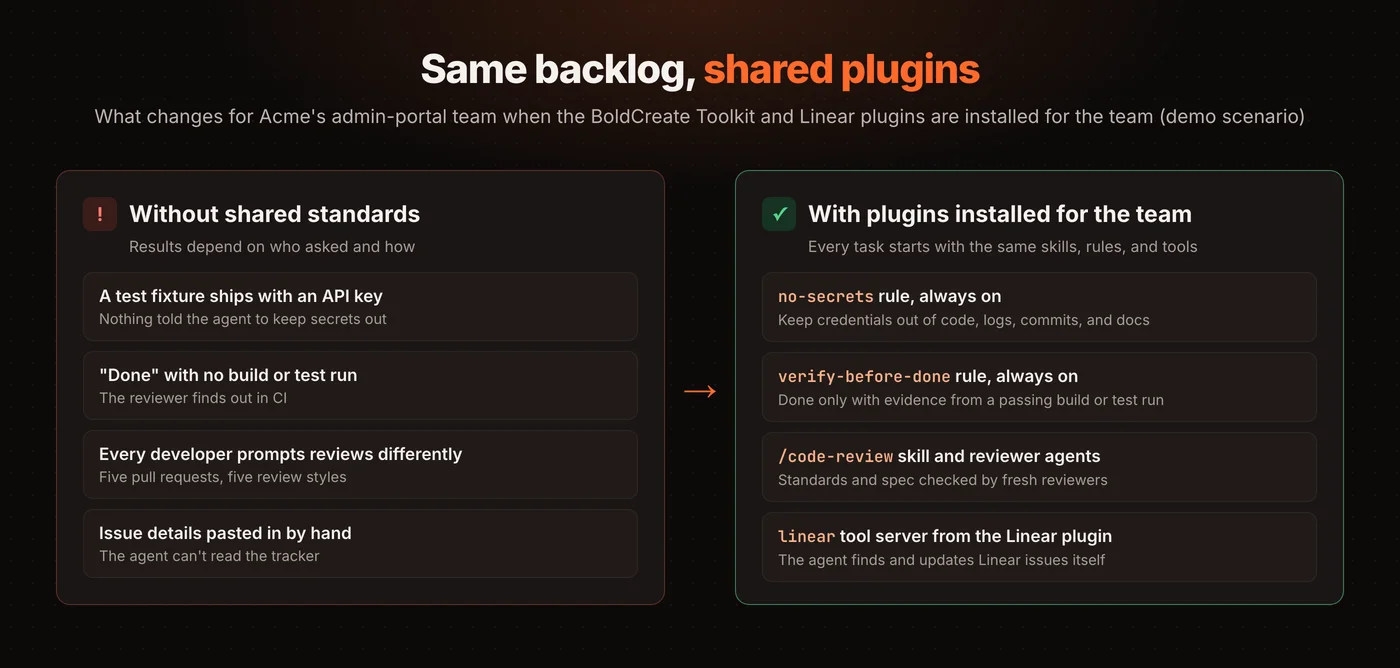
Customize in BoldCreate puts those standards where the agent can read them. You install them once as a plugin, and every agent on the team works from them.
What a Plugin Brings
A plugin is a package from the plugin marketplace. One plugin can contain any mix of four parts:
| Part | What it does | Example from the BoldCreate Toolkit |
|---|---|---|
| Skills | Written workflows the agent follows for one kind of job | /code-review reviews a diff on two axes, standards and spec |
| Agents | Specialists with their own instructions and focus | security-reviewer reviews a commit range or design |
| Rules | Standards the agent follows always, for certain files, or on request | no-secrets keeps credentials out of code, logs, commits, and docs |
| Tool servers (Model Context Protocol, or MCP) | Connections that give the agent tools, such as an issue tracker | The separate Linear plugin brings a linear MCP server |
The BoldCreate Toolkit is a good place to start. It brings 18 skills, five agents, and four rules that take a project from idea to release: specs, test-first builds, code review, and pull requests.
Set Up Shared Standards in Six Steps
Here’s how Alex sets up the admin-portal team. Every step happens on the Customize page in app.boldcreate.ai, and the Desktop App has the same page.
Step 1: Find a plugin and see what it brings
Select Customize in the sidebar. The Plugins tab lists what’s installed and the marketplace below it, and each card shows what the plugin brings, such as “1 skill · 1 agent” or “1 tool server.” Select a card to open its page, with the version, the date it was last updated, and every skill, agent, rule, and tool server it contains.
Step 2: Try it on your own tasks first
Leave Install for set to Myself and select + on the plugin card. Only your tasks get the plugin, so you can see how it behaves before anyone else depends on it. Alex runs the Toolkit’s /code-review skill on the Monday pull request that skipped the spec check and compares the findings with what the team’s reviewers flagged.
Start a new task after you install. Tasks that were already open keep the plugins they started with.
Step 3: Check what every agent will follow
The Skills, Agents, MCPs, and Rules tabs list everything your installed plugins brought, grouped by plugin. The Rules tab is the one to read closely, because it shows when each rule applies:
- Always on: The agent follows the rule in every message, like
no-secretsandverify-before-done. - Applies to: The rule applies only to matching files, like
plain-english-docsfor**/*.md. - On request: The agent uses the rule when it fits the request.
For Alex, those two always-on rules answer two of Monday’s problems directly. The agent is told to keep credentials out of commits, and to report work as done only with evidence from a passing build or test run.
Step 4: Connect the tools your team uses
Tool server plugins connect the agent to services your team already uses. The marketplace includes plugins for Linear, Notion, Stripe, Neon, Context7, Microsoft Learn, and more. Alex installs the Linear plugin so the agent can find, create, and update Linear issues instead of waiting for someone to paste them in.
Some tool servers need your account. Their status reads Needs sign-in. Select Connect, sign in and approve access in your browser, and the server’s tools reach your next message. You can switch a server off for yourself in MCPs > From plugins.
Step 5: Roll it out to your team or organization
Once the plugin works on your own tasks, choose who else gets it. Set Install for before you select +, or use the Install menu on the plugin’s page.
| Install for | Who gets the plugin | Who can choose it |
|---|---|---|
| Myself | Only you | Everyone |
| Team | Everyone on your team | Admins and team leads |
| Organization | Everyone in your organization | Admins only |
Alex installs the Toolkit and the Linear plugin for the admin-portal team. From the next task on, every developer on the team starts with the same review skill, the same rules, and the same Linear connection, without copying a prompt or editing a config file.
Step 6: Use skills and plugin agents in a task
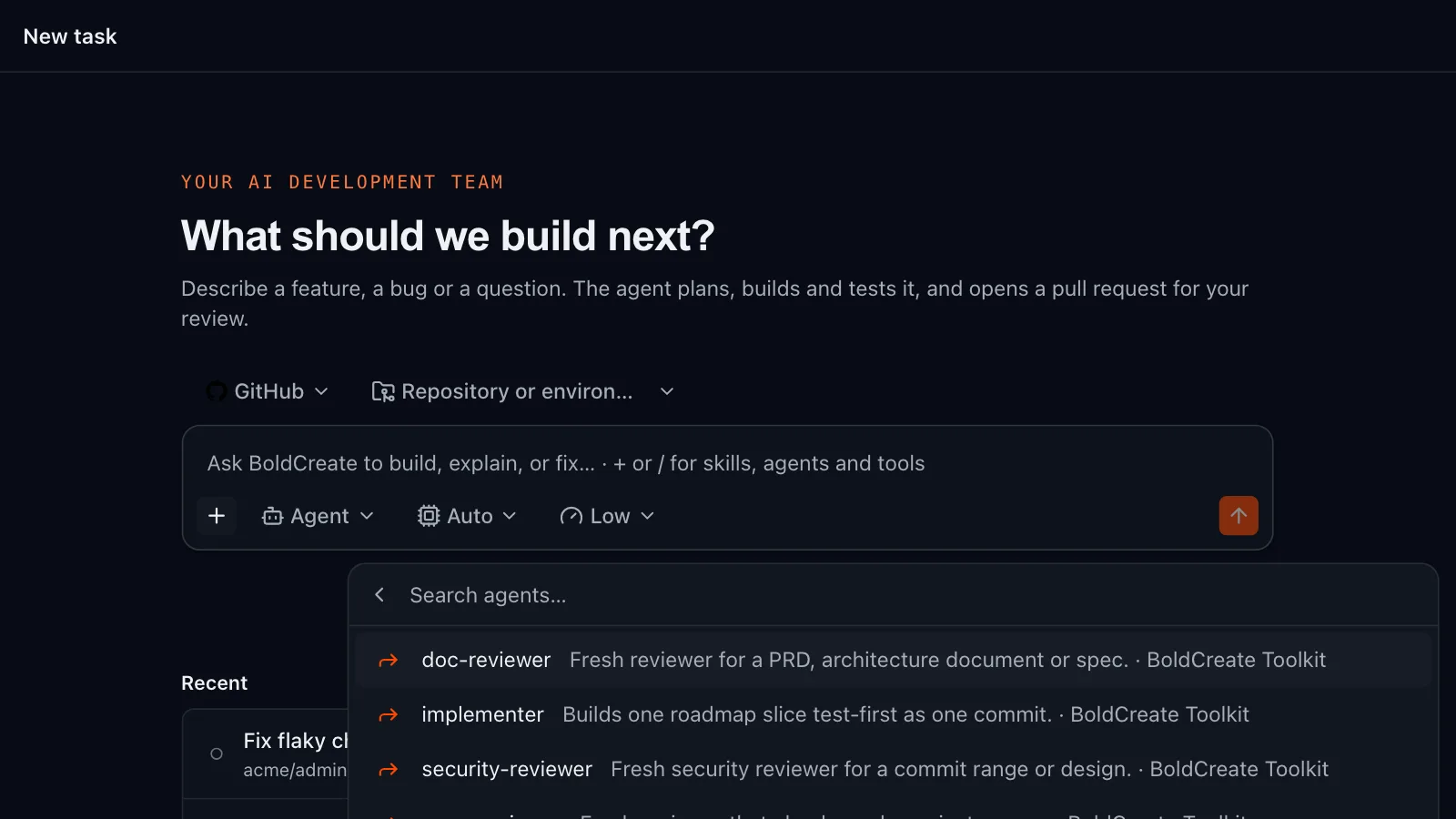
In the message box, type / or select + to open a menu with Hand off, Files, Skills, and Tools. Pick a skill, and it appears as a chip above your message. Then describe what you want and send it. You can add up to five skills to one message.
You don’t always have to pick a skill. The agent knows your installed skills and can use one on its own when your request fits.
To give a message to one of the plugin’s specialists, open Hand off and choose an agent, such as security-reviewer before a change to authentication code. To run a whole task as a plugin agent, choose it in the agent picker when you create the task.
The Same Plugins in the Desktop App and the CLI
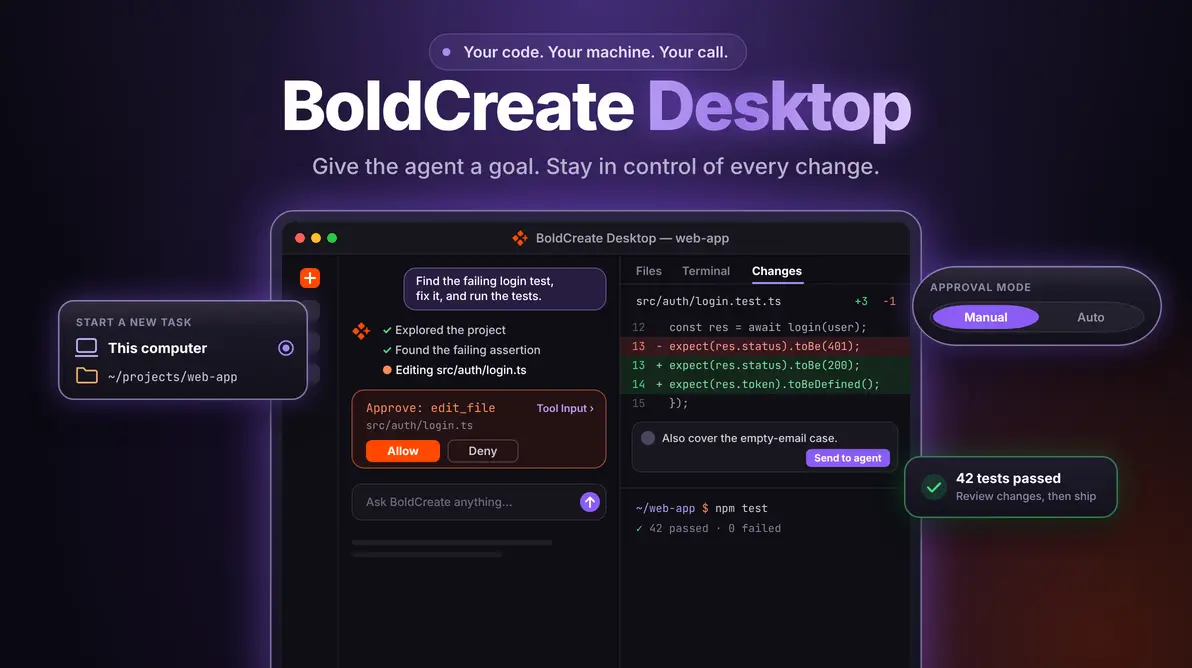
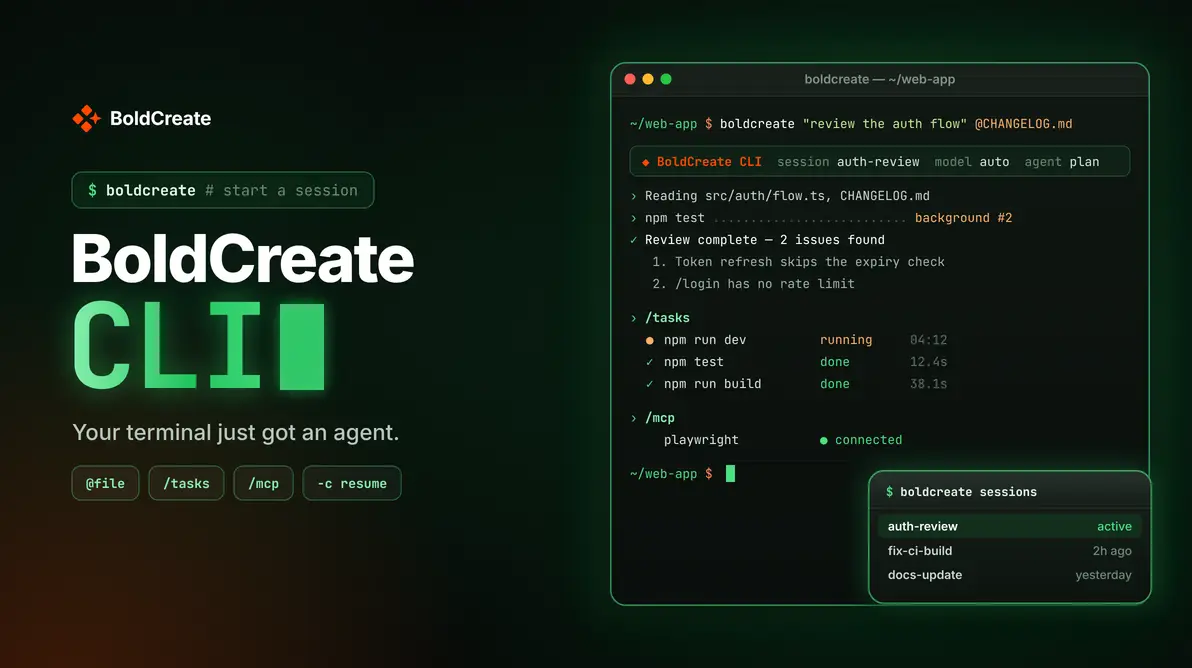
Plugins follow your account, not one product. You install them on the Customize page in Cloud Agent or the Desktop App, and the CLI picks them up when you start a new session with the same account.
In the terminal, list what you have and use a skill by name:
boldcreate plugins/skill:code-review the changes on this branchThe CLI shows each plugin’s skills, agents, rules, and tool server status, and the main agent can hand part of a job to a plugin agent while it works. In the Desktop App, you can also add tool servers that run on your computer. Only local tasks use them.
For every option, see the plugin guides for Cloud Agent, the Desktop App, and the CLI.
Tips for Rolling Out Plugins
- Pilot before you widen. Install for yourself, run a week of real tasks, then install for the team.
- Check Install for every time. The switch goes back to Myself when you leave the Plugins tab.
- Start fresh tasks after a change. Open tasks keep the plugins they started with, and new tasks get the current set.
- Read the rules list with your team. Always-on rules apply to every message, so agree on them the way you’d agree on a linter config.
- Know who manages what. A plugin installed for a team or organization can be uninstalled only by someone allowed to manage it.
Try Your Standards on One Task
Pick one plugin and one task from your backlog. Install the plugin for yourself, run the task, and read the pull request. When it looks right, install the plugin for your team.
Open Customize in BoldCreate, read about AI agent customization, or request a demo to plan a rollout with our team.
Frequently Asked Questions
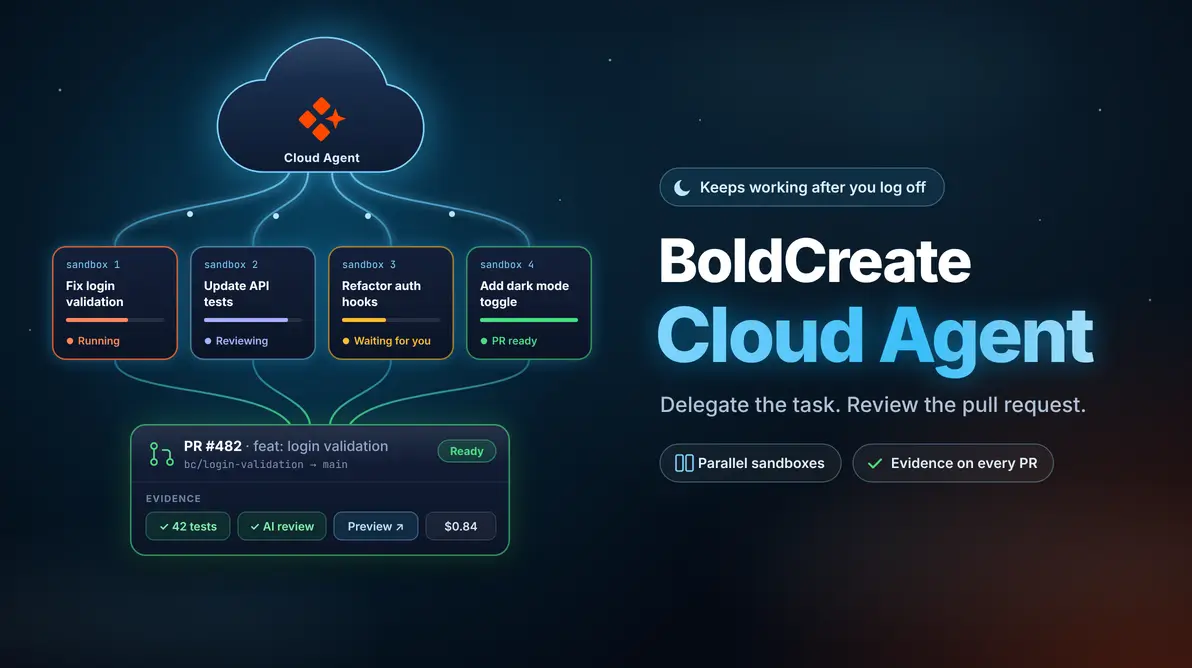
A plugin is a package from the plugin marketplace that adds skills, agents, rules, and tool servers (MCP servers) to BoldCreate. You install it on the Customize page, and agents use it in the cloud and on your machine.
Everyone can install a plugin for themselves. Admins and team leads can install it for a team, and only admins can install it for the organization. If you see only Myself, ask a team lead or admin.
Tasks keep the plugins they had when they started. Start a new task after you install a plugin. In a brand-new task, if the first message doesn’t use the plugin, send the request again.
You can switch a plugin’s tool server off for yourself in MCPs > From plugins. Skills, agents, and rules can’t be switched off one by one. To remove them, uninstall the plugin.
Yes. Install plugins in Cloud Agent or the Desktop App, then start a new CLI session with the same account. Run boldcreate plugins to see them, and type /skill: to use a skill.

Leave a comment
Join the discussion by signing in with your account.
Sign in to comment